
Quickstart
This guide provides the initial steps to set up Onemap8, login and connect your first device.
Login to platform
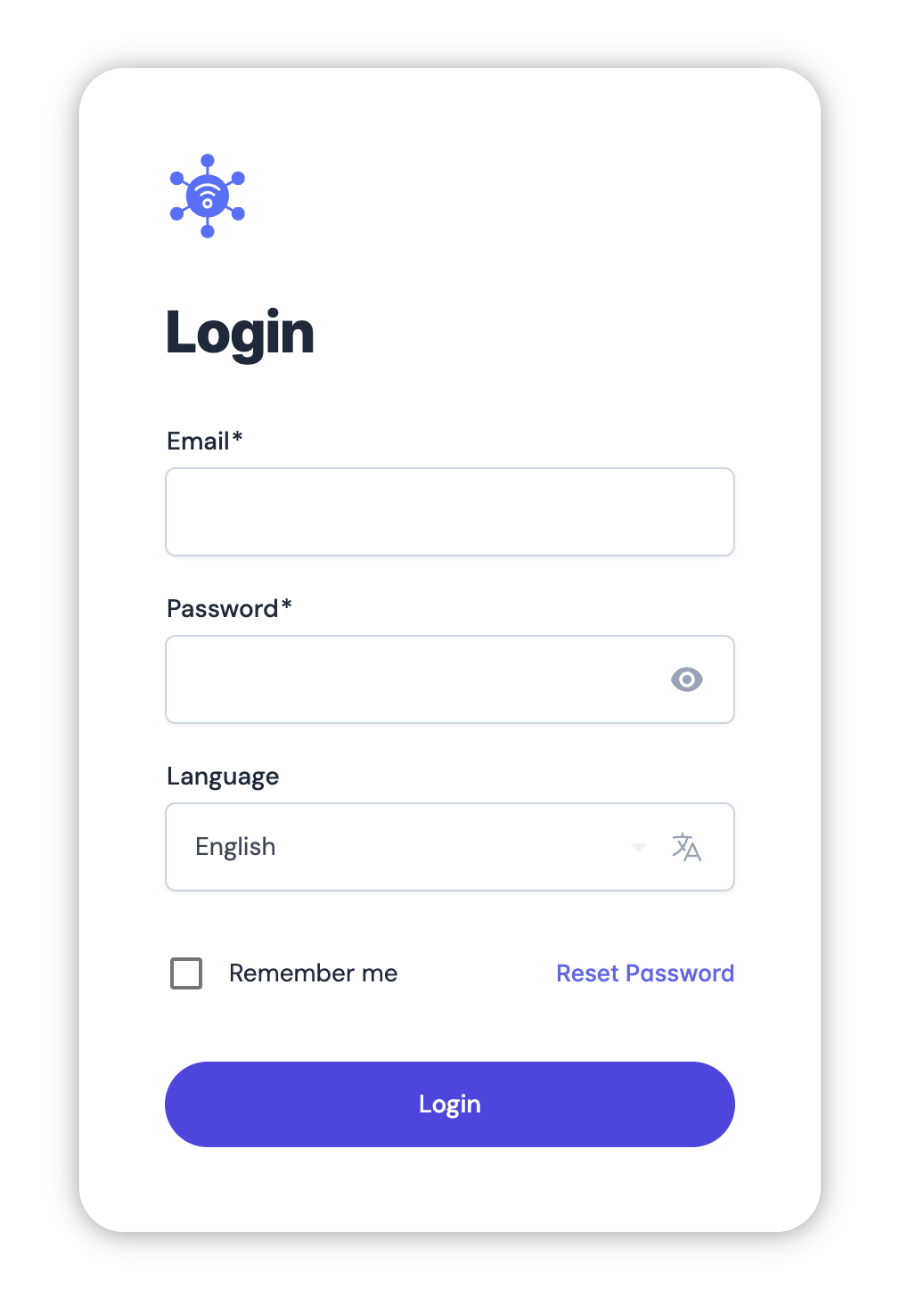
To log in to the Onemap8 platform, navigate to onemap8. Once there, you will be prompted to select your preferred language. After selecting the language, enter your credentials: either your username and password or your email and password. If you have forgotten your password, click on the "Forgot Password?" link to receive a recovery email that will guide you through the process of resetting your password. If two-factor authentication (2FA) is enabled on your account, you will need to provide the verification code sent to your registered device after entering your credentials. This additional security step helps protect your account from unauthorized access. Once you have successfully entered your credentials and any required verification codes, you will gain access to the platform and its features.
Open the App
Use the Onemap8 Manager mobile app. You can download it from the Google Play Store or the Apple App Store.
PRO plan to grab your
API key from your dashboard. You find it under Settings » API.Register a Device
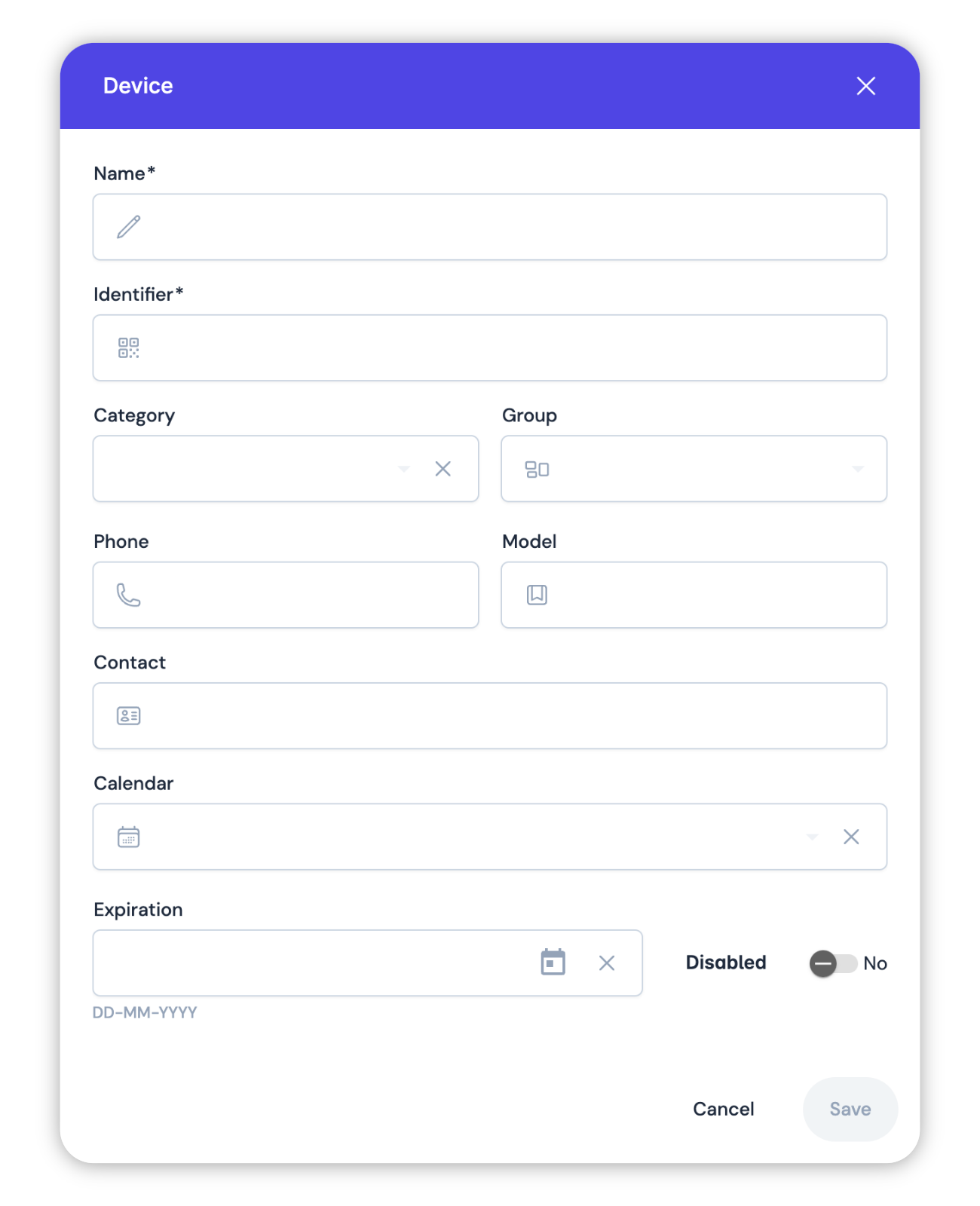
Click the add button (the plus icon) in the devices toolbar to register a new device. You have to fill out the name and identifier fields. The name can be anything. The identifier has to match the unique ID your device is reporting to the server. For most devices, you should use the IMEI or the serial number as the unique identifier. If you don't know your device identifier, you can configure the device to report the data first and look for the ID in the log. Check the troubleshooting guide for more details.
Configure the Device
Configure your device to start reporting the location data to your server. For more details on how to configure your specific model, check your device manual or contact your device vendor support. To select the correct port number, find your device in the list of supported devices. The port column indicates the default port number in the platform for your device.
Making your first API request
You are ready to make your first call to the Protocol API. Below, you can see how to send a GET request to the Devices endpoint to get a list of all your devices.
  curl --location 'https://gw.onemap8.com/api/devices?all=<boolean>' \
--header 'Accept: application/json' \
--header 'Authorization: Basic {your_access_token}'
What's next?
Great, you're now set up with an API client and have made your first request to the API. Here are a few links that might be handy as you venture further into the platform API: